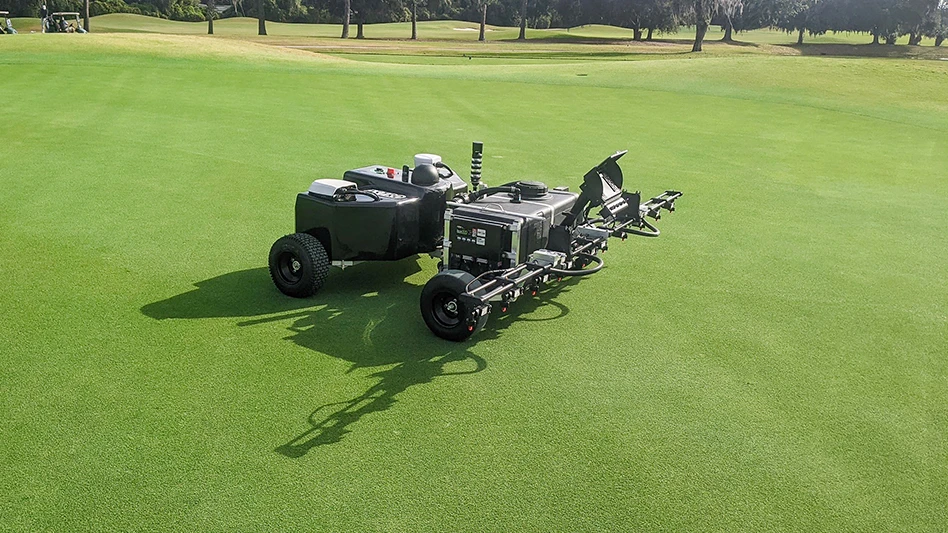
Everybody hates Mondays, but Monday, Dec. 3 was a particularly bad one in my case. I’d just finished walk-mowing my allotment of greens and was riding back to the shop when I hit a rogue bump, and my leg got caught underneath the left tire of the trailer hitch on which I was sitting. The mower wanted to keep moving forward but my boot and the ankle encased therein refused. Something had to give, and that something was my left fibula. I felt a dull snap, and I obligingly fell to the cold asphalt, conceding the argument.
After a week of sitting in my bungalow keeping my foot elevated and reading back issues of Golf Course Industry, I was back at the shop with my leg in a cast talking to my superintendent, Lynn Childress. The bone doctor said I was only fit for “light duty.” The problem with that is there’s really no such a thing on a golf course. Or was there? I told Lynn I knew something about computers.
“Could you map the course?” he asked.
“What do you mean?” I asked.
“You know, tell us the square footage of our greens – that sort of thing,” he said.
“Do you have any GPS equipment?” I asked.
“No,” he replied.
“Do you have a digitized map of the course?” I asked.
“No,” he said.
“Do you have any software packages able to handle geospatial data?” I asked.
“Nope,” he said.
No GPS gizmos, no map, no software – things didn’t look so good. I knew better than to ask for a budget, so I went to back to the bungalow in search of an answer. All I had there was an Internet connection and a cheap laptop loaded with Ubuntu Linux. I cranked up some Rob Zombie and heated a pot of cheap coffee, brewed extra strong.
The bungalow was smelling a little ripe, and so was I, but it’s hard to clean up hobbling around on a throbbing leg. But I came up with an answer to mapping the course. The result is shown in Figure 1, and it didn’t cost my superintendent one red cent. I used satellite imagery provided for free by Google to get an aerial map of the course. I used another free utility provided by Google, something called Google Earth, to outline the course’s features and to record the latitudes and longitudes of the corresponding points.
Then I loaded the data into a free database called PostgreSQL augmented with a geospatial library called PostGIS (free as well), so I could manipulate the data and render the report shown in Figure 1 using OpenOffice, another free package that’s a standard part of the Ubuntu distribution of Linux. It took me about a week to figure this out and generate the report.
And my superintendent? He likes all this whizbang computer stuff, but what he really wants to know is when I’ll be back mowing greens and making those wavy lines I’m so famous for. It’s nice to be appreciated. But there are more global implications to the mapping exercise. Not so long ago, sophisticated geospatial analysis used to be the sole provenance of high-priced consultants armed with fancy equipment and elaborate software.
Clearly, this isn’t the case any longer. Software doing such analysis is free and getting easier to use. As for satellite imagery, Google assembles this and make its freely available. The only caveat is that the images are sometimes almost three years out of date, but I imagine this will be remedied in the years to come, and someday we’ll have access to images that are almost real-time.
The result has been a sudden democratization of the capability to map things. As for golf courses, this will mean superintendents probably will do their own mapping in the near future and do it more often and accurately as a consequence. As for me, this means I’ll have to find something else to do the next time I break something. GCI
Figure 1: the final report
|
|

Figure 2: Google Earth in action as applied to hole 18 of the Savannah Harbor Golf Resort & Spa
|
|

Technical details
First, you’ll need to install Google Earth (http://earth.google.com), PostgreSQL (http://www.postgresql.org), PostGIS (http://www.postgis.org) and PHP (http://www.php.net). Window installers, MacOSX binaries and Linux packages are available for all these applications.
Now open Google Earth and enter the name or address of your golf course in the ‘flyto’ box. Google Earth should take you to a satellite image of your facility posthaste. Now, zoom in on green number one on your course and then click on the polygon symbol located in the toolbar.
A window will pop up prompting you for a name, a color and a style. Type in ‘1green’ for a name, select yellow for a color and ‘outlined’ for a style. Now, try outlining the green by serially clicking on its perimeter with your mouse. Having done that, click the ‘OK’ button on the pop-up box, and you’ll see ‘1green’ register in the ‘My places’ window on the left. Right click on that name, and save the corresponding information in a file called, say, “mycourse.kml”.
What’s being saved are the latitude and longitude readings of the points you’ve clicked and the name you’ve given the resulting collection. Google Earth uses a special language abbreviated “KML” to record this information (hence the “kml” extension). Now do this seventeen more times, working through each of your greens (1green, 2green, 3green ... 18green) and save the results to mycourse.kml.
Now, do the same thing for the bunkers on hole one. Use the following naming convention: 1bunker1, 1bunker2, etc. Do the same for hole two: 2bunker1, 2bunker2, etc.
After doing your bunkers, do your fairways and tees. When you’re done with these, outline each hole in its entirety and call these 1outline, 2outline, etc. Whew! That should take you several hours of mind-numbing work. This is the hard part. In the end, mycourse.kml will contain a complete description of the features of your course. Nice!
Now, you need to load the contents of mycourse.kml into a database. But before doing so, you’ll need to do some things in preparation. First, following the excellent documentation at www.postgresql.org, initialize and create a database, naming it, say, ‘repository’. Now, log into ‘repository’ using the psql client and execute the following commands to create a table called ‘course’:
CREATE TABLE course (id serial primary key, name varchar(50));
SELECT AddGeometryColumn ('course', 'geom', 4326, 'POLYGON', 2);
This table called ‘course’ will house your data. Right now, it’s empty. To populate it, you’ll need the following script called ‘parse.php’:
<?php
$connectionString = “<fill in according to your configuration>”;
$dbconn = pg_connect($connectionString);
$file = $argv[1];
if ($file == ""){
echo "usage: php parse.php <filename.kml>\n";
exit;
}
$lines = file($file);
$numberLines = count($lines);
$counter = 1;
$xmlstr = "";
foreach($lines as $line){
if ($counter != 2 && $counter != $numberLines){
$xmlstr = $xmlstr.$line;
}
$counter++;
}
$xml = new SimpleXMLElement($xmlstr);
$query = "delete from course";
pg_query ($dbconn, $query);
foreach ($xml>
Folder>
Placemark as $placemark) {
$name = $placemark>
name;
$results = preg_split('/\s/',$placemark>
Polygon>
outerBoundaryIs>
LinearRing>
coordinates);
$query = "INSERT INTO course (name,geom) VALUES ('$name', GeomFromText('POLYGON((";
foreach ($results as $val){
if ($val != ""){
$results = preg_split('/,/', $val);
$query = $query.$results[0]." ".$results[1].", ";
}
}
$query = rtrim($query, ", ");
$query = $query."))',4326))";
echo "$query\n";
pg_query($dbconn, $query);
}
You’ll need to edit the variable $connectionString according to your database configuration. Having done that, execute the following at the commandline: php parse.php mycourse.kml. That should load the table with your data.
Now you’re ready to explore your data. Log into ‘repository’ again using the psql client and execute the following query: SELECT name, area(TRANSFORM(geom, 2249)) FROM names LIKE ‘%green’. You should see something like I do when doing so:
repository=# SELECT name, AREA(TRANSFORM(geom, 2249)) FROM course WHERE name LIKE '%green' ORDER BY AREA ASC;
name | area
+
5green
| 3690.3299754858
6green | 4327.75371307135
7green | 4625.4969676137
9green | 5287.25103366375
14green | 5412.6253554225
8green | 5610.66040974855
1green | 6098.36108154058
13green | 6354.07860088348
10green | 6644.90488612652
17green | 7229.57536864281
4green | 7388.43306279182
15green | 8055.91889619827
2green | 9817.71410787106
3green | 10051.5779517889
16green | 10059.5748870969
18green | 10348.3783308268
11green | 12469.4677619338
practicegreen | 13761.7474744916
12green | 19195.9654201865
(19 rows)
The result is each green and its corresponding square footage in ascending order. Now try this: SELECT SUM(AREA(TRANSFORM, 2249))) FROM course WHERE name LIKE ‘%green’. You should see something like I do:
repository=# SELECT SUM(AREA(TRANSFORM(geom, 2249))) FROM course WHERE name LIKE
'%green';
Sum
------------------
156429.815285385
(1 row)
The result is the square footage of all your greens in aggregate. Now, do the same for bunkers, fairways and tees. For instance, to get the area of bunkers on hole one, try the following: SELECT SUM(AREA(TRANSFORM(geom,2249))) FROM course WHERE name LIKE ‘1bunker%’. You should see something like this:
repository=# SELECT SUM(AREA(TRANSFORM(geom,2249))) FROM course WHERE name LIKE
'1bunker%';
Sum
------------------
9579.14014369249
(1 row)
To get the total area in bunkers on your course, try this: SELECT SUM(AREA(TRANSFORM(geom,2249))) FROM course WHERE name LIKE ‘%bunker%’. Something like this should result:
repository=# SELECT SUM(AREA(TRANSFORM(geom,2249))) FROM course WHERE name LIKE
'%bunker%';
sum
107281.396715403
(1 row)
For these queries to work, you must use the naming convention described above. Otherwise, you’ll get a zero or worse, a not so obvious misleading result.
Now, you’re ready to calculate the roughs. To do so for hole one, for example, query the database for the square footage in ‘1outline’. Take that result and subtract out the square footage occupied by the fairway, the green, the bunkers and the tees. What remains is the rough. Now do that seventeen more times for the remaining holes!
Having done all that, you’re ready to report your results in a nice tabular format. Use your favorite word processor program to do this. I use OpenOffice because, you guessed it, it’s free!
I imagine the database portion of this tutorial may seem daunting to a lot of you. If that is the case, contact your local university and see if you can find a computer science or geography major with a spare afternoon. Show him or her this article, hand over your kml file and they should be able to do the rest for a hundred bucks. Good luck!
Latest from Golf Course Industry
- Foothills Golf Club picks Landscapes Golf Management
- Reinders to host 27th biennial Turf Conference
- Trade show rookie
- From the publisher’s pen: The business of bunkers
- Western Golf Association names new chair
- The Toro Company gives $50,000 to support Rounds 4 Research
- U.S. Battery celebrates 100th anniversary
- Lawrence Yacht and Country Club turns to Troon